
TruckStock gives you two quick ways to see what’s still waiting to be filled: a list grouped by truck, and a chart by part category. This guide shows you both.
Before you start
- Who can do this: anyone who needs to see open requests, such as managers and stockroom staff. Both views are on the Dashboard.
- What you need: at least one open request. See How to Request Items.
Steps
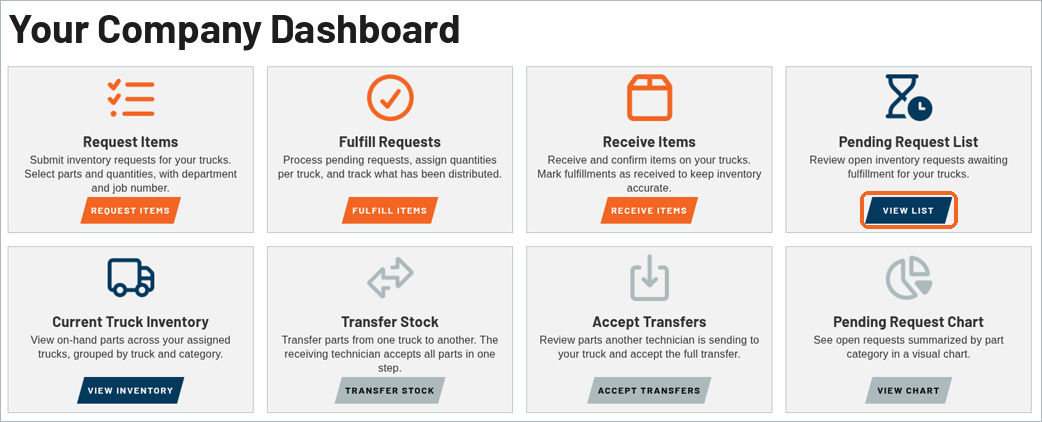
1. Open the Pending Request List
On the Dashboard, click VIEW LIST on the Pending Request List tile.
2. Open a truck to see its requests
The header shows how many requests are open, such as Pending Requests (2). Click a truck’s name to open it. The small gray label above each table is the part category, such as FILTERS or THERMOSTATS & CONTROLS. Each row shows the Part Number, Part Name, Quantity Requested, Requested Date & Time, Requested By, Job # and Type.

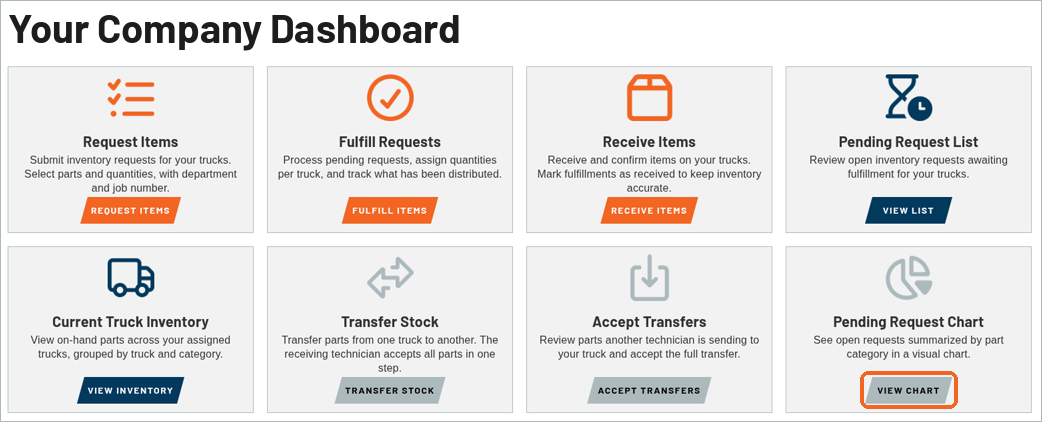
3. Open the Pending Request Chart
Go back to the Dashboard and click VIEW CHART on the Pending Request Chart tile.
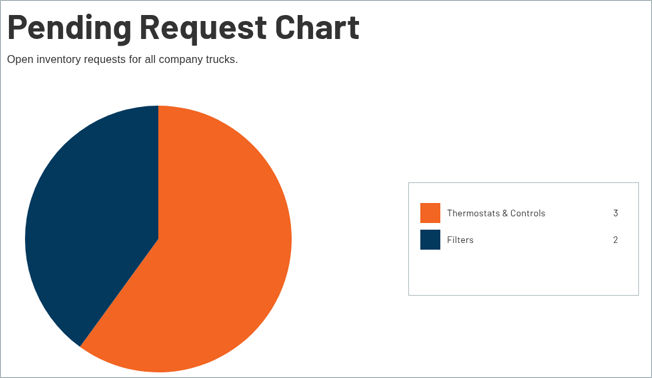
4. Read the chart
The chart shows open requests summarized by part category. The legend lists each category with its number, so you can see at a glance which kinds of parts are in demand.
What’s next
Next up: How to Use TruckStock Reports.
Recent Comments