
Each truck in your fleet gets its own record in TruckStock, with a truck type and the technicians who use it. This guide shows you how to add a truck and choose how it should be stocked.
Before you start
- Who can do this: company admins, since trucks are managed from the Administration page.
- What you need: at least one truck type (part template) set up. See How to Create Truck Types (Part Templates). To assign a technician, they need to be a user in your company.
Steps
1. Open your trucks
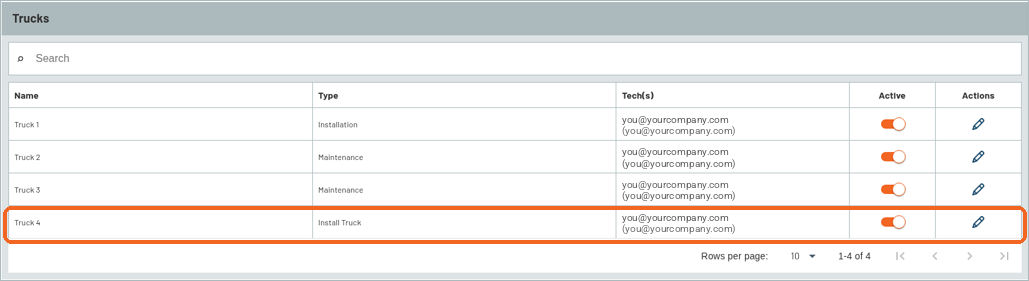
Click Administration, then MANAGE TRUCKS in the Fleet & Inventory group. The list shows each truck’s Name, Type, assigned Tech(s) and Active status. To add one, click ADD TRUCK.

2. Name the truck and pick its type
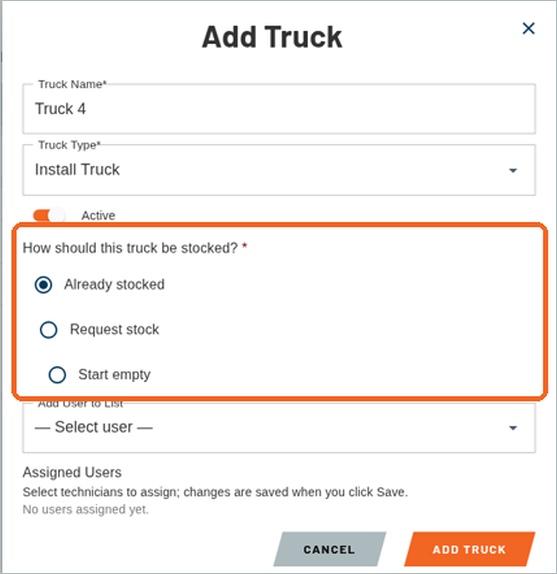
In the Add Truck window, type a Truck Name and choose a Truck Type. The list shows your part templates. Leave Active switched on.
3. Choose how the truck should be stocked
Under How should this truck be stocked?, pick one of Already stocked, Request stock or Start empty. A choice is required, and Start empty is selected when the window opens.
4. Assign technicians and save
Choose a user from Add User to List to assign them to the truck. They appear under Assigned Users, with a trash icon to remove them. Then click ADD TRUCK.

5. Check your new truck
A confirmation message appears at the top right, and your new truck shows in the list with its type and technicians. Use the pencil icon to edit a truck later.
6. See what’s on each truck
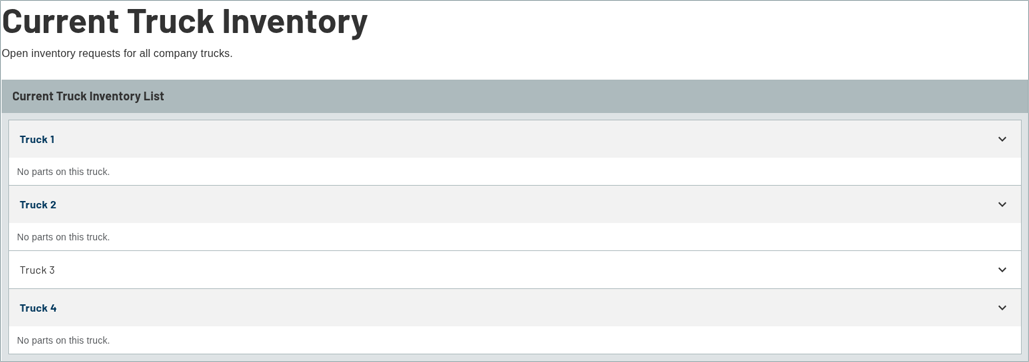
Click Dashboard, then Current Truck Inventory. Click a truck’s name to open it. A truck with nothing on it yet shows No parts on this truck.
What’s next
Next up: How to View and Edit Truck Inventory.
Recent Comments