
When fulfilled parts reach a truck, you confirm what arrived. This guide shows you how to receive items and check that they’re on the truck.
Before you start
- Who can do this: technicians receiving parts on their trucks, or anyone who confirms deliveries.
- What you need: parts that have been fulfilled for the truck. See How to Fulfill Requests.
Steps
1. Open Receive Items
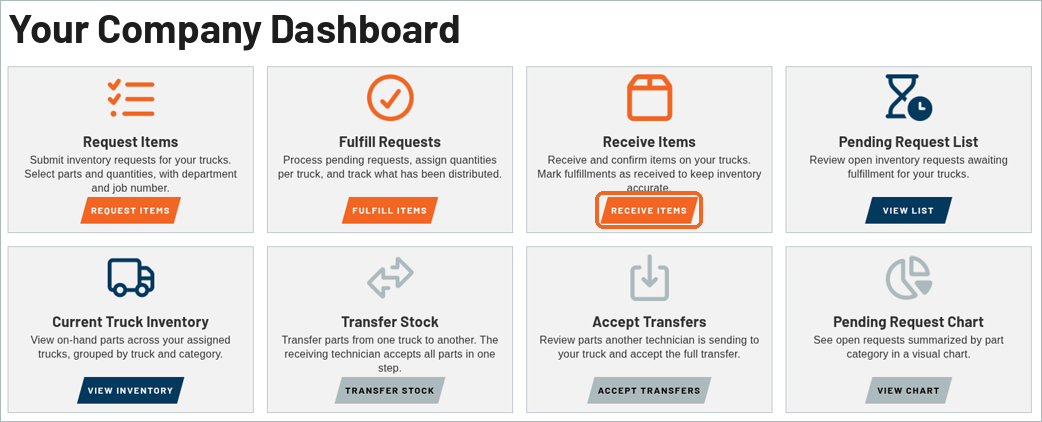
On the Dashboard, click RECEIVE ITEMS on the Receive Items tile.
2. Choose the truck
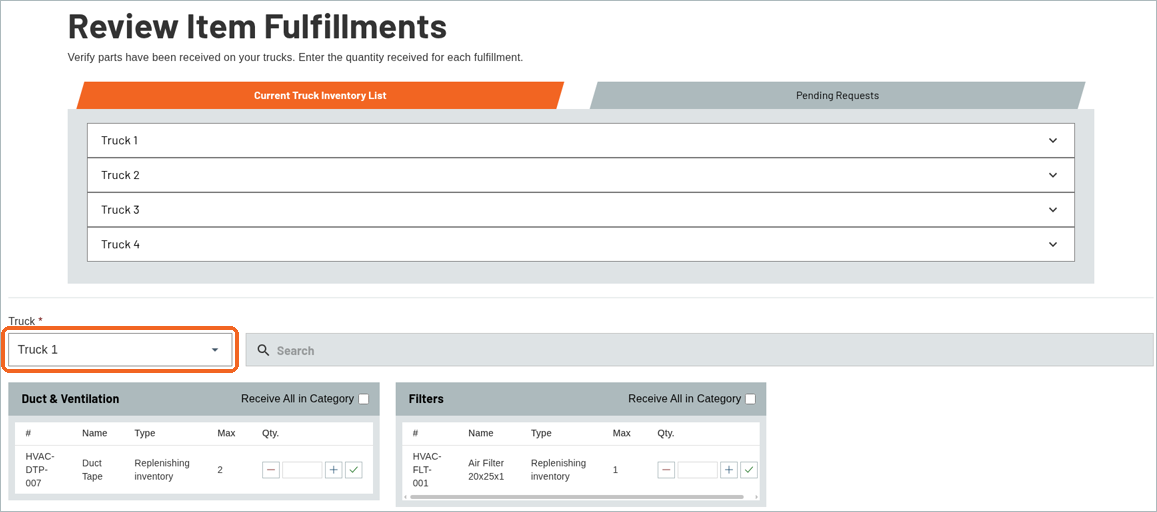
The Review Item Fulfillments page opens. Pick the Truck, which is required. The parts waiting to be received appear below, grouped by category, with their Name, Type and Max quantity. The tabs at the top, Current Truck Inventory List and Pending Requests, show what’s already on your trucks and what’s still open.
3. Enter what you received
For each part, enter the quantity that arrived in Qty., using the minus and plus buttons or by typing a number. Each category also has a Receive All in Category box.

Then click SUBMIT REVIEW at the bottom right.

4. Check for the confirmation
A message at the top right says Recorded 2 receive line(s)., with the number of lines you received. When nothing is left to receive for that truck, the page shows No pending receipts for this truck.

5. See the parts on the truck
On the Dashboard, click VIEW INVENTORY on the Current Truck Inventory tile and open the truck. The parts you received are listed with their Part Number, Part Name and Quantity.

What’s next
Next up: How to Transfer Stock Between Trucks.
Recent Comments