
This guide shows you how to build your parts catalog. You’ll add part categories and suppliers first, then add parts and assign each one a category and supplier.
Before you start
- Who can do this: company admins, since these screens are on the Administration page.
- What you need: your list of parts, with SKUs, and your suppliers’ details. Your trial company already has sample categories, a sample supplier and sample parts you can look at first.
Steps
1. Open your part categories
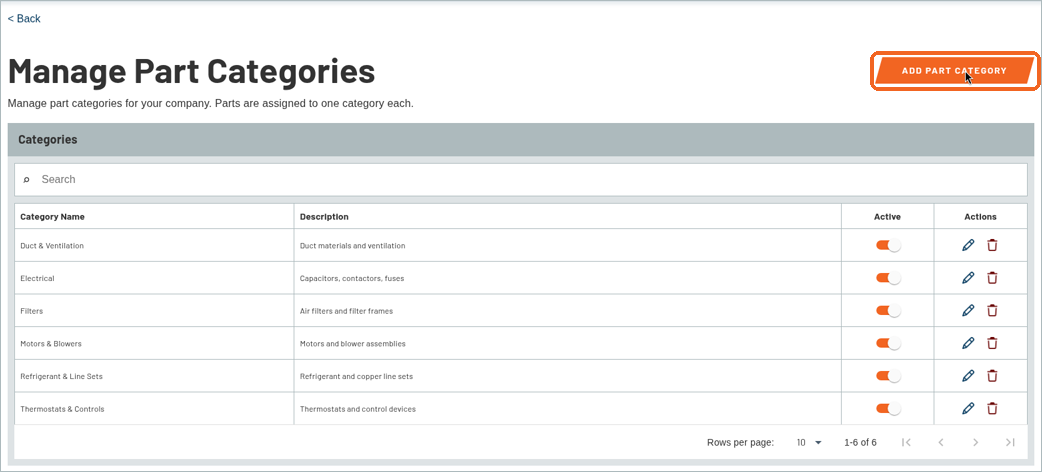
Click Administration, then MANAGE PART CATEGORIES in the Fleet & Inventory group. Each part is assigned to one category. To add a category, click ADD PART CATEGORY.
2. Add a category
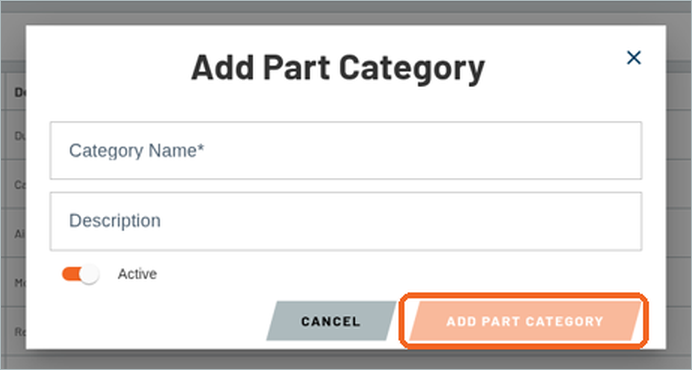
In the Add Part Category window, type a Category Name and, if you like, a Description. Leave Active switched on, then click ADD PART CATEGORY.
3. Open your suppliers
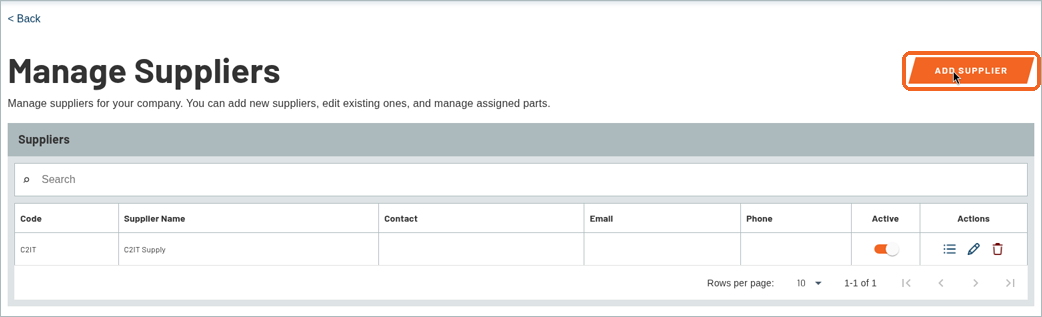
Go back to Administration and click MANAGE SUPPLIERS. The list shows each supplier’s Code, Supplier Name, Contact, Email and Phone. To add a supplier, click ADD SUPPLIER.
4. Add a supplier
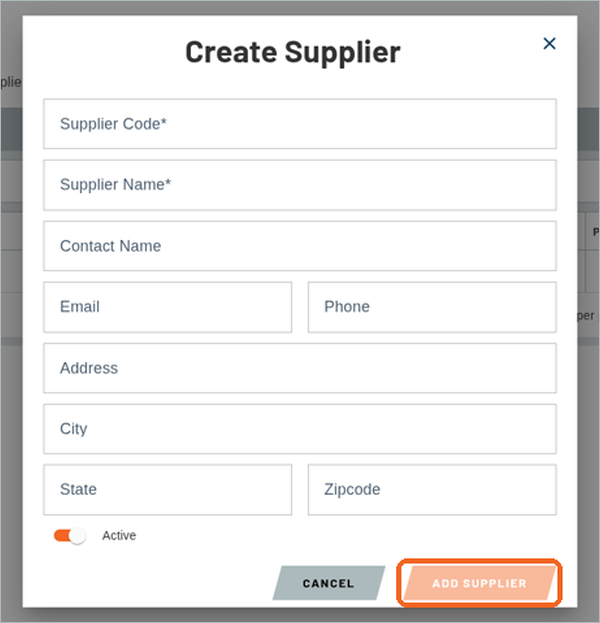
In the Create Supplier window, enter a Supplier Code and Supplier Name. These two are required. You can also add a Contact Name, Email, Phone and address. Leave Active switched on, then click ADD SUPPLIER.
5. Open your parts list
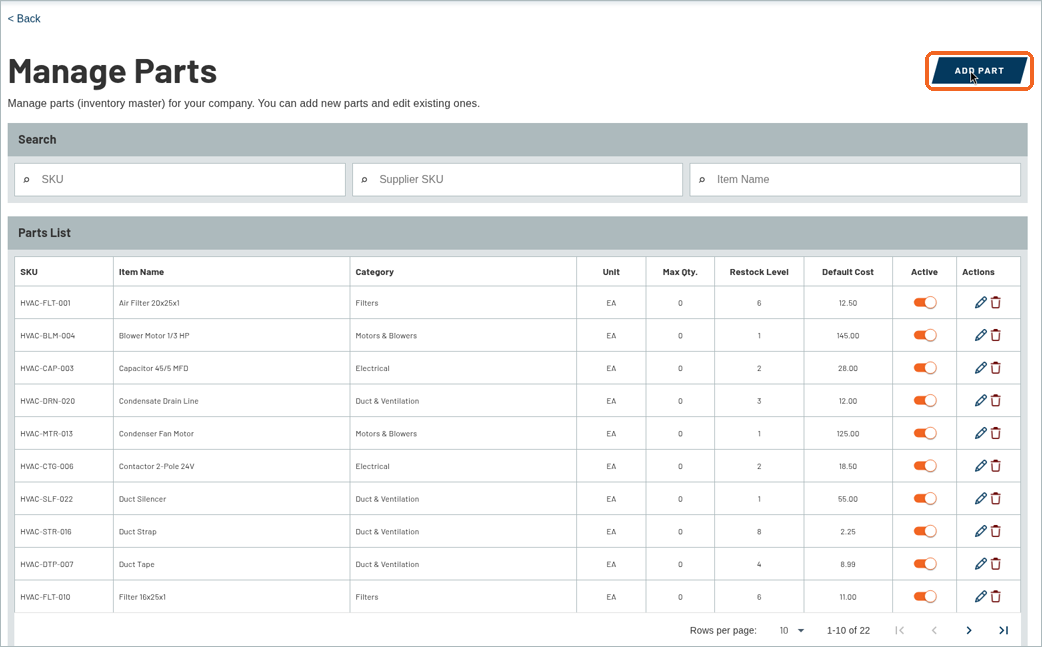
Go back to Administration and click MANAGE PARTS. The Parts List shows each part’s SKU, Item Name, Category, Unit, Max Qty., Restock Level, Default Cost and Active status.
6. Find a part
Type in the SKU, Supplier SKU or Item Name search box to narrow the list. Matching parts also show under Categories and Parts, grouped by category.

7. Add a part
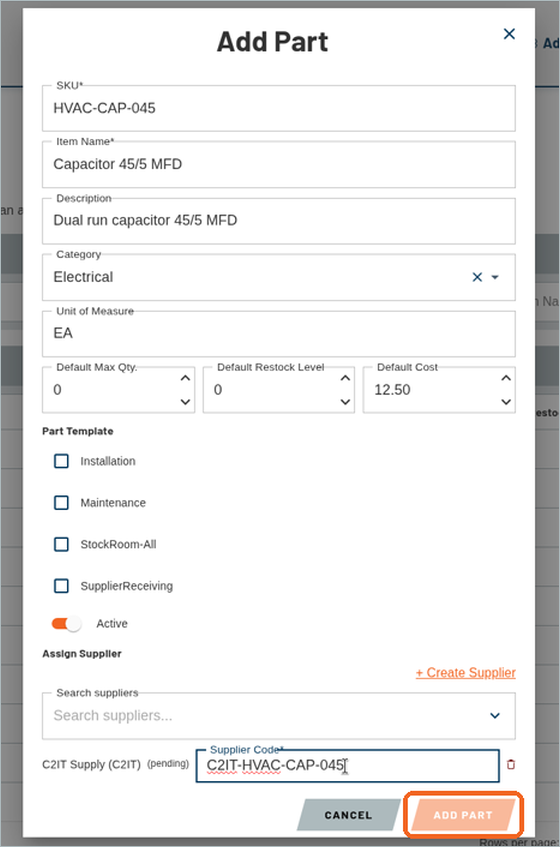
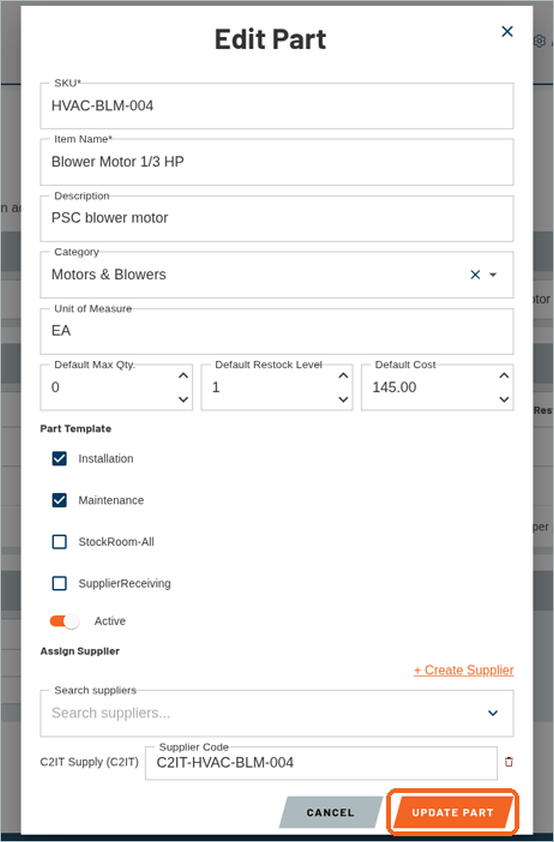
Click ADD PART. In the Add Part window:
- Enter the SKU and Item Name (both required), plus a Description if you like.
- Choose a Category and enter the Unit of Measure, such as EA.
- Fill in Default Max Qty., Default Restock Level and Default Cost.
- Under Part Template, tick the templates this part should be on.
- Under Assign Supplier, search for a supplier (or click + Create Supplier), then enter that supplier’s code for the part in Supplier Code.
Leave Active switched on, then click ADD PART.
8. Check your new part
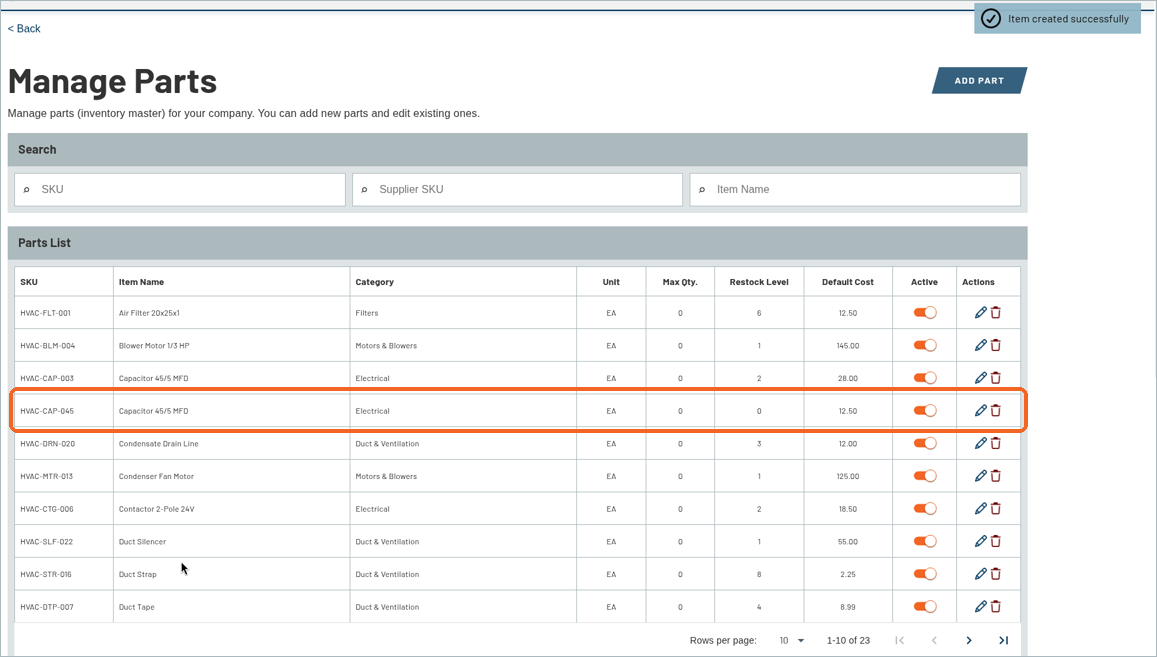
A confirmation message appears at the top right, and your new part shows in the Parts List.
9. Edit a part later
To change a part, click the pencil icon in its row. The Edit Part window has the same fields. Make your changes and click UPDATE PART.
Recent Comments