

Sometimes a part on one truck is needed on another. This guide shows you how to send parts to another truck, and how the receiving technician accepts them.
Before you start
- Who can do this: technicians sending parts from their truck, and the technician on the receiving truck, who accepts them.
- What you need: parts on the truck you’re sending from. See How to Receive Items.
Send parts to another truck
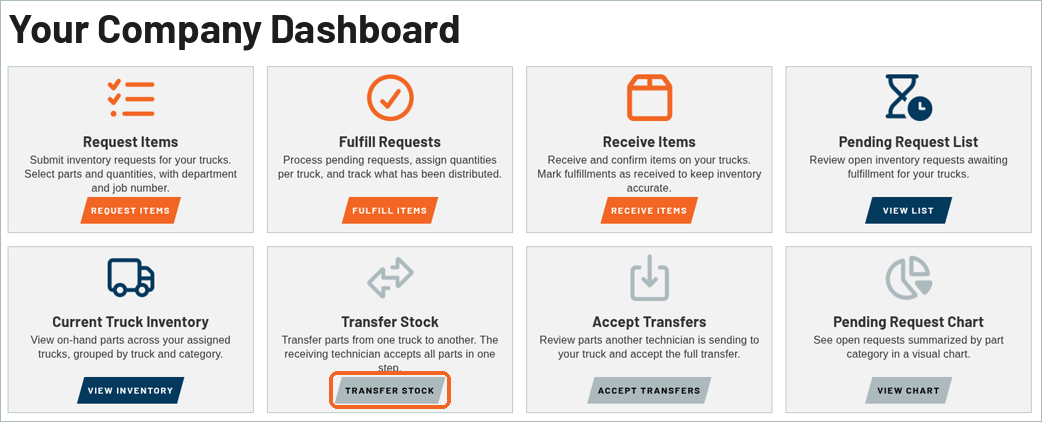
1. Open Transfer Stock
On the Dashboard, click TRANSFER STOCK on the Transfer Stock tile.
2. Choose the trucks
Pick the From Truck you’re sending parts from and the To Truck that should get them. The To Truck list shows each truck with its assigned technician. Add a Note if you like. As the page says, inventory moves only after the receiving technician accepts all parts.

3. Enter the quantities and submit
The Transfer Stock list shows the parts on the sending truck with their On Hand quantity. Use the minus and plus buttons, or type a number, in Transfer Quantity for each part you’re sending. Then click SUBMIT TRANSFER.

4. Check Outgoing Pending
A message starting Transfer submitted. appears at the top right. Your transfer shows under Outgoing Pending with the trucks, the date and time, and the parts. To call it off before it’s accepted, click CANCEL TRANSFER.

Accept an incoming transfer
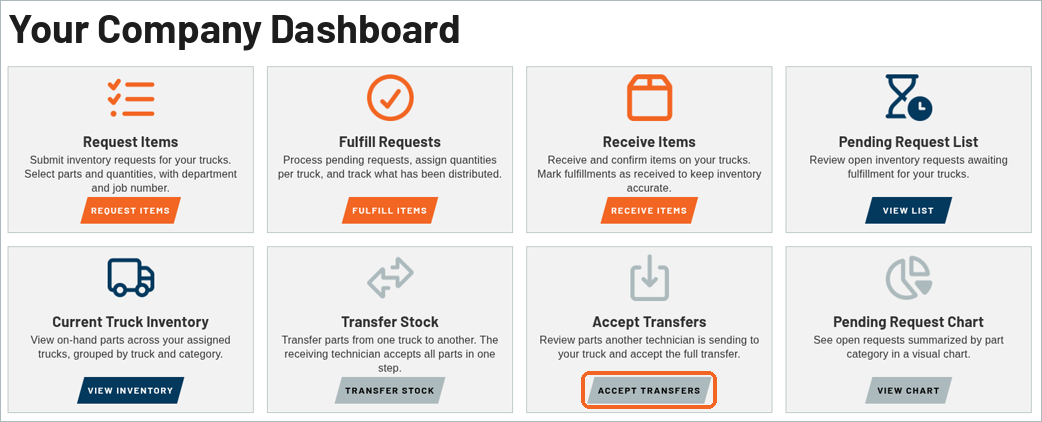
5. Open Accept Transfers
The technician on the receiving truck clicks ACCEPT TRANSFERS on the Accept Transfers tile on the Dashboard. You can also click INCOMING TRANSFERS on the Transfer Stock page.
6. Review and accept the parts
The Accept Transfer page shows who the transfer is from, the trucks, the note and the parts you’re receiving. Click ACCEPT ALL PARTS to take them, or DECLINE TRANSFER to turn the transfer down.

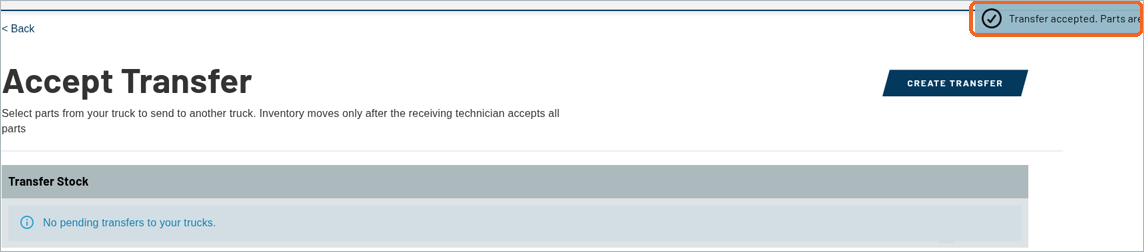
7. Check for the confirmation
A message starting Transfer accepted. appears at the top right. When there’s nothing left to accept, the page shows No pending transfers to your trucks.
Recent Comments