The Profile, About and Contact links are in the top menu on every page. This guide shows you what each one is for.
Before you start
- Who can do this: anyone signed in to TruckStock.
- What you need: nothing special.
Steps
1. Update your profile
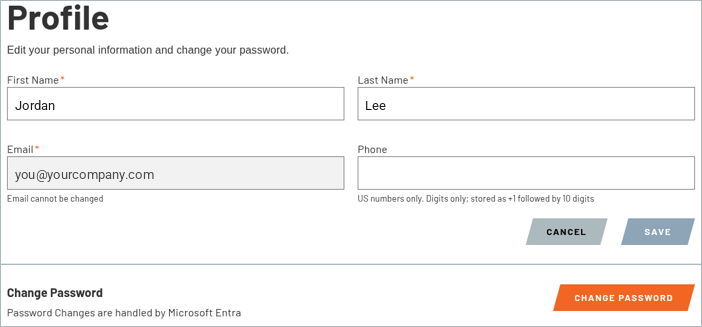
Click Profile in the top menu. Fill in your First Name and Last Name, which are required, and add a Phone number if you like. Phone numbers must be US numbers, digits only. Your Email can’t be changed here. Click SAVE to keep your changes, or CANCEL to leave without saving. You’ll also see a CHANGE PASSWORD button.
2. Learn about TruckStock
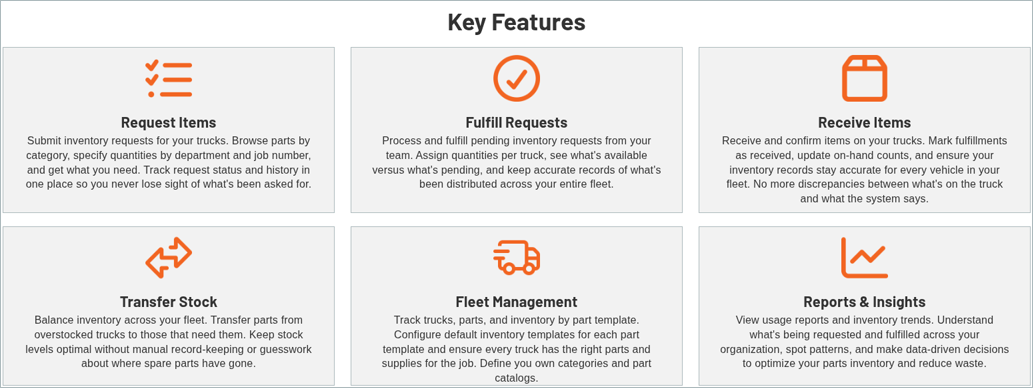
Click About in the top menu for an overview of TruckStock, including How It Works and its Key Features.

3. Contact us
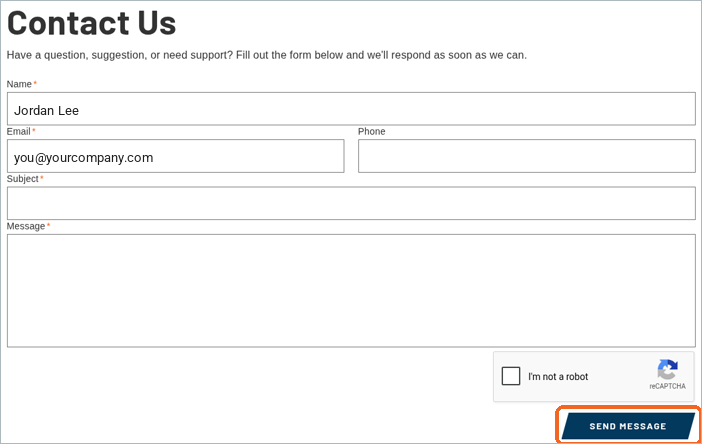
Click Contact in the top menu to open the Contact Us form. Your Name and Email are filled in for you. Add a Phone number if you like, then enter a Subject and your Message. Tick I’m not a robot, then click SEND MESSAGE.
What’s next
That’s the end of the TruckStock guides for now. Find all of them in Support Documentation.
Recent Comments