
In TruckStock, a truck type is set up as a part template: a default parts list for a kind of truck, such as a service truck or an install truck. This guide shows you how to create a template and add parts to it.
Before you start
- Who can do this: company admins, since part templates are on the Administration page.
- What you need: the parts you want on this type of truck, already added to your parts catalog. See How to Set Up Parts, Categories and Suppliers.
Steps
1. Open your part templates
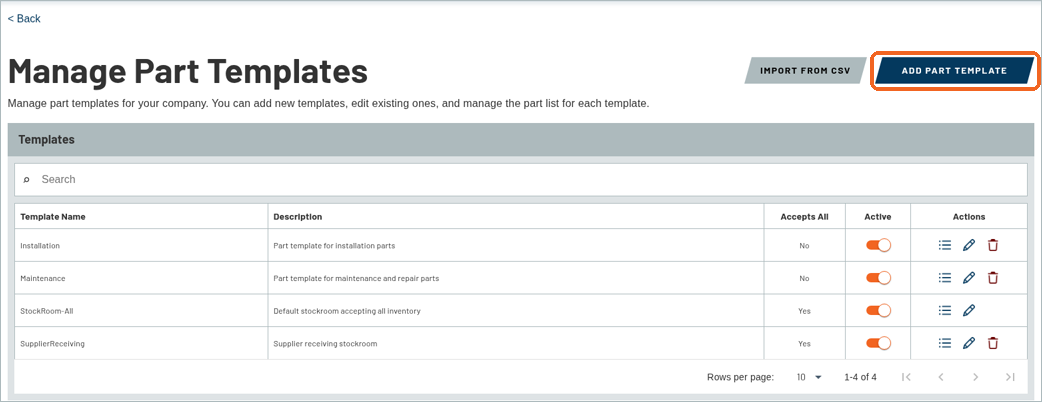
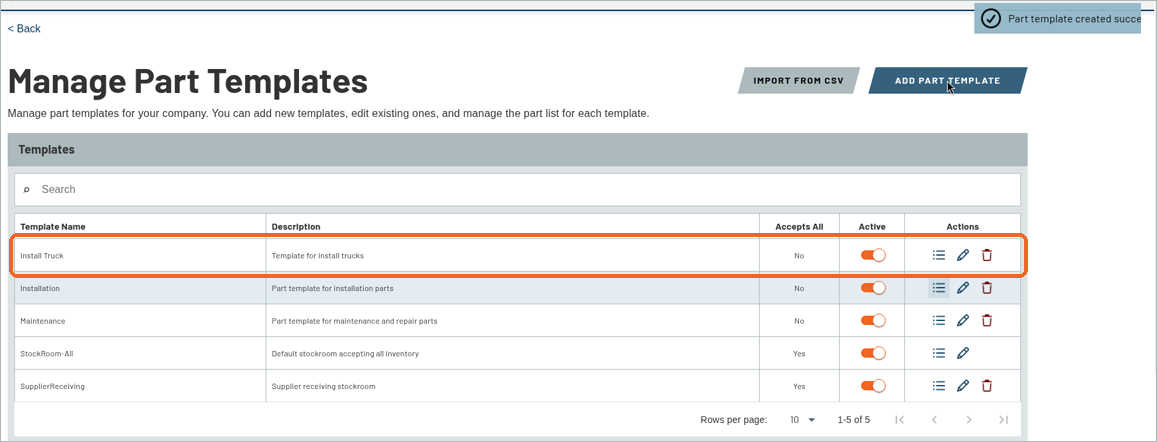
Click Administration, then MANAGE PART TEMPLATES in the Fleet & Inventory group. The list shows each template’s Template Name, Description, Accepts All setting and Active status. Your trial company comes with sample templates.
2. Look at a template’s parts
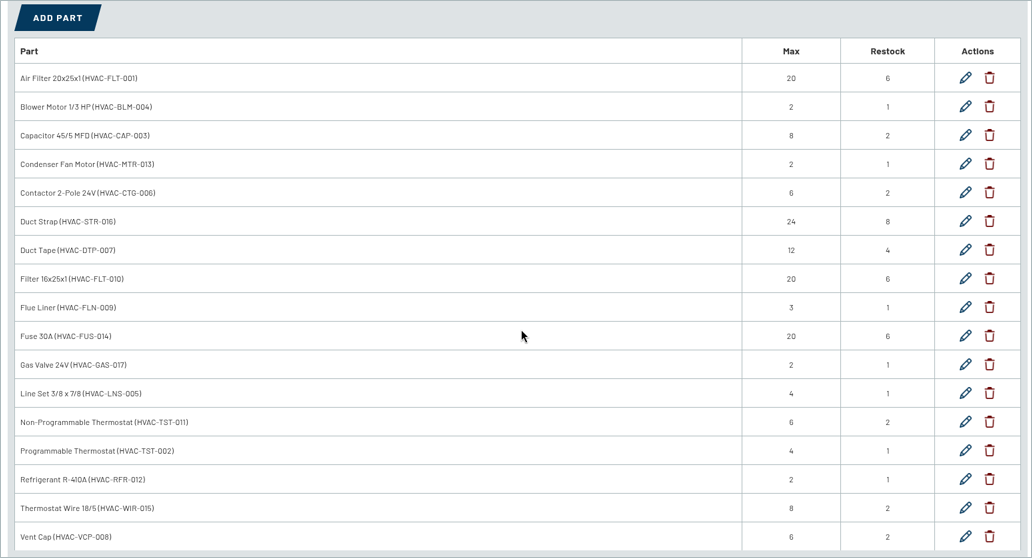
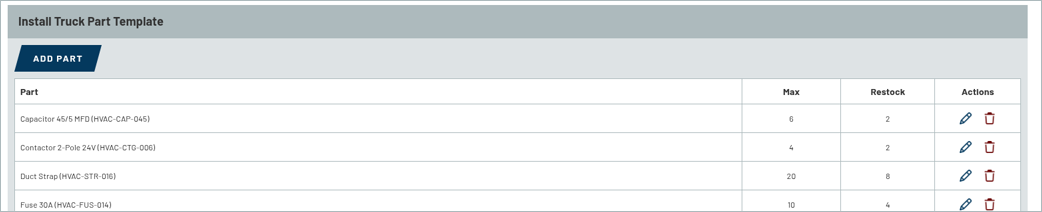
Click the list icon in a template’s row to see its parts. Each part has a Max and a Restock number, with buttons to edit or remove it.
3. Add a new template
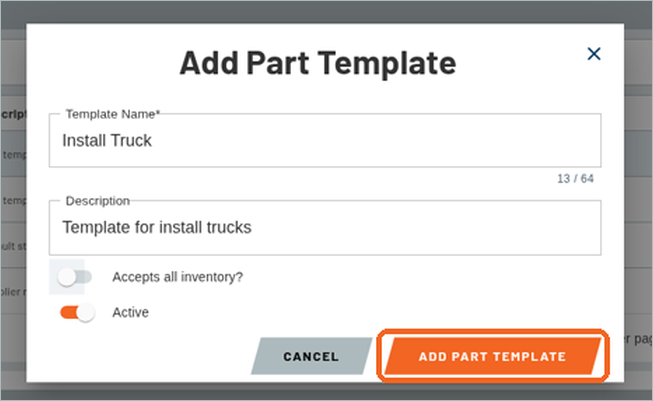
Click ADD PART TEMPLATE. In the Add Part Template window, type a Template Name, such as Install Truck, and a Description. You’ll also see an Accepts all inventory? switch. In the sample data it’s on for the stockroom templates and off for truck templates like Installation. Leave Active switched on, then click ADD PART TEMPLATE.
4. Check your new template
A confirmation message appears at the top right, and your new template shows in the list.
5. Add parts to the template
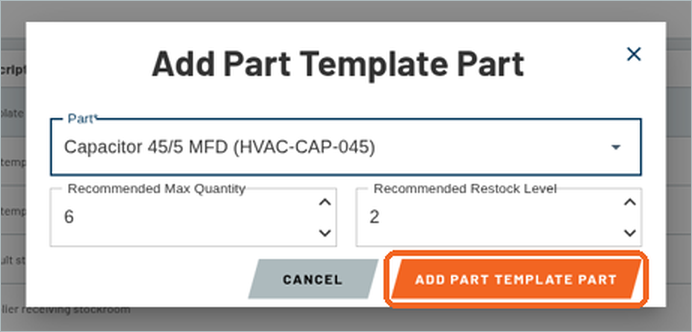
Click the list icon for your new template, then click ADD PART. In the Add Part Template Part window, choose a Part, enter a Recommended Max Quantity and a Recommended Restock Level, then click ADD PART TEMPLATE PART.
6. Repeat for each part
Add each part this type of truck should carry. The template’s part list shows every part with its Max and Restock numbers. You can change or remove a part later with the buttons in its row.
What’s next
Next up: How to Add Trucks and Stock Them.
Recent Comments