
This guide walks you through signing up for TruckStock. You’ll create your account with your email address, verify it with a code, and set up your trial company. It takes just a few minutes.
Before you start
- Who can do this: anyone setting up TruckStock for their company. If someone at your company already uses TruckStock, ask them to invite you instead.
- What you need: a work email address you can check right now, and the name of your company.
Steps
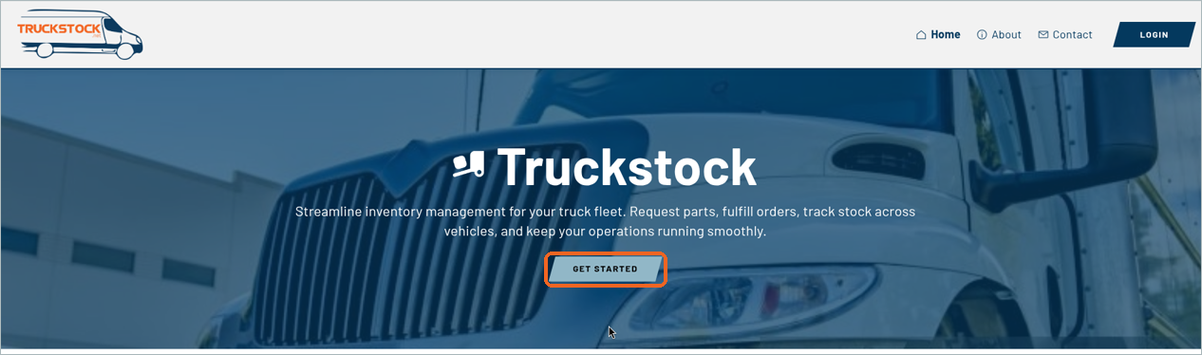
1. Go to app.truckstock.net and click GET STARTED
Open app.truckstock.net in your web browser and click GET STARTED.
2. Enter your email address
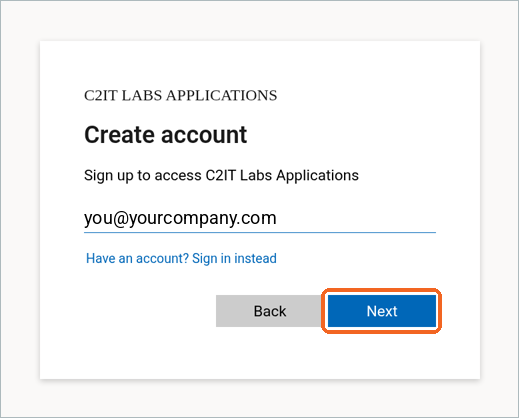
On the Create account screen, type your work email in the Email box, then click Next. The sign-up screens say C2IT Labs Applications. C2IT Labs is the company behind TruckStock, so you’re in the right place.
3. Check your email for a verification code
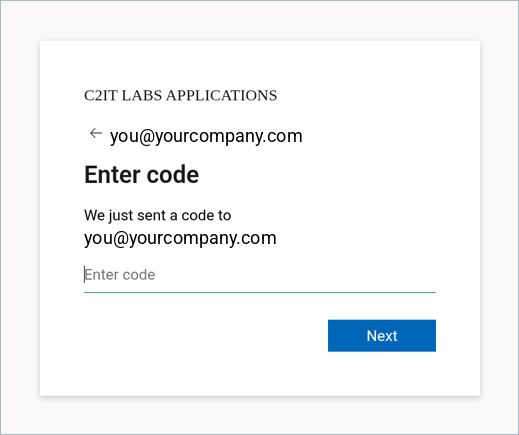
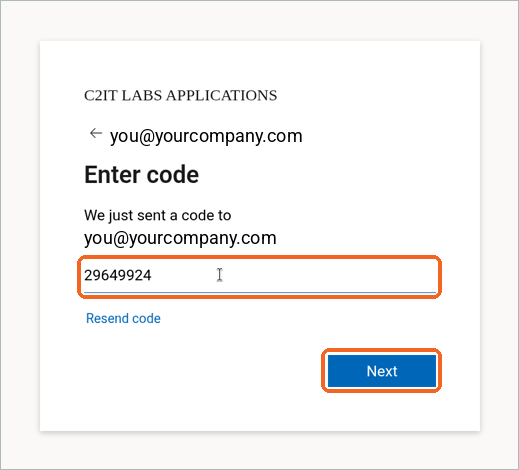
You’ll see the Enter code screen. We email you an 8-digit verification code from C2IT Labs Applications (via Microsoft). The code works for 30 minutes. If you don’t see it, check your spam or junk folder.
4. Enter the code
Type the code into the Enter code box and click Next. If the code doesn’t arrive or expires, click Resend code.
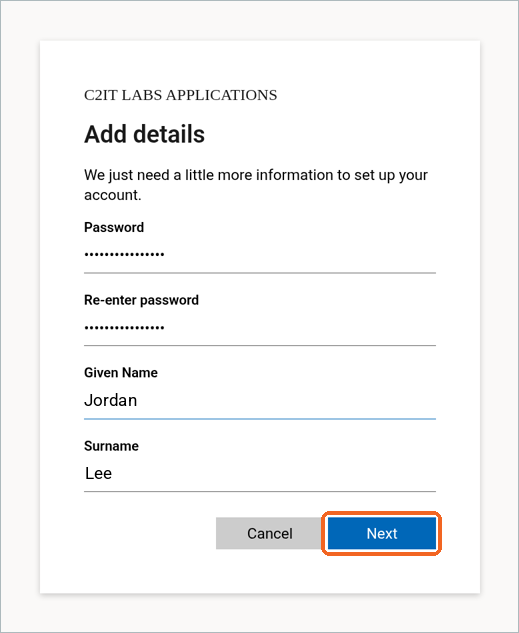
5. Add your details
On the Add details screen, create a Password, type it again in Re-enter password, and enter your Given Name (first name) and Surname (last name). Then click Next.
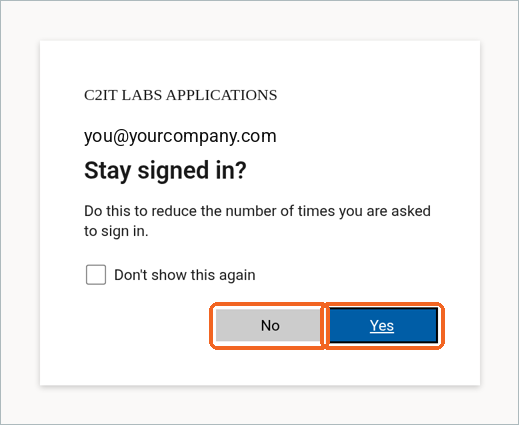
6. Choose whether to stay signed in
On the Stay signed in? screen, click Yes to stay signed in on this device, or No if you’re using a shared computer.
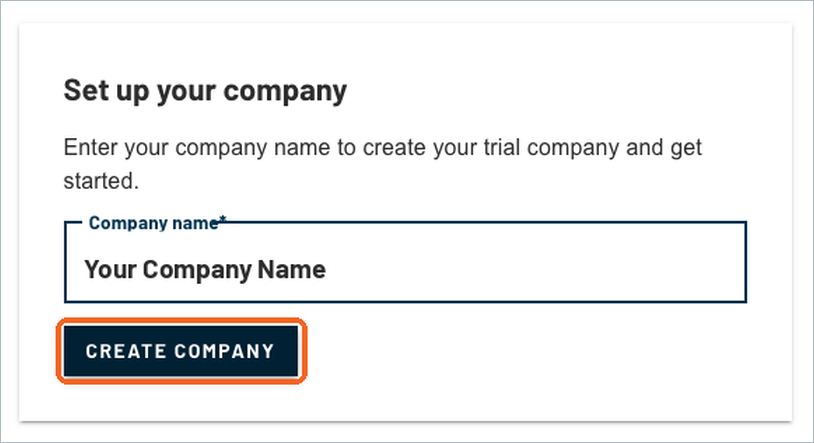
7. Set up your company
On the Set up your company screen, enter your Company name and click CREATE COMPANY. TruckStock creates your trial company and fills it with sample data, including parts and trucks, so you can explore right away. This can take a few moments.
8. Start from your company’s dashboard
When your company is ready, TruckStock takes you straight to its dashboard, with shortcuts like Request Items, Fulfill Requests, Receive Items and Current Truck Inventory. Your new company is already selected in the company switcher at the top right, so you can always check which company you’re working in.
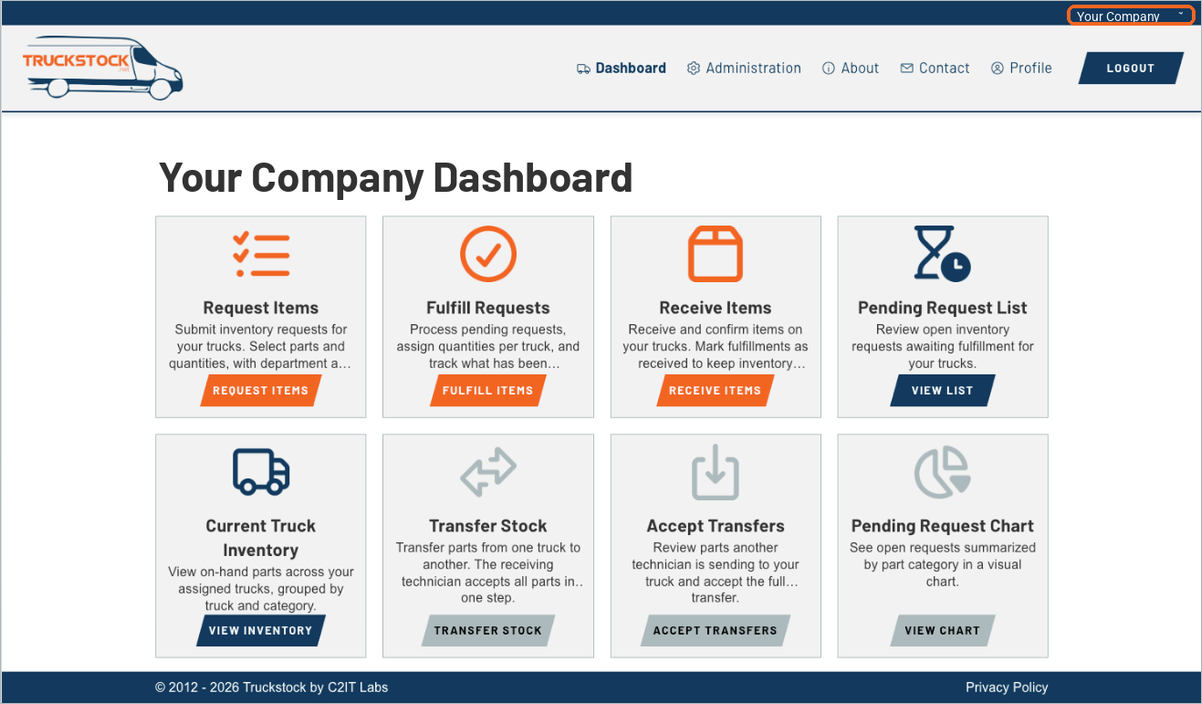
That’s it. Your TruckStock account and trial company are ready.
What’s next
Next up: Getting Around TruckStock: The Dashboard and Administration Menu.
Recent Comments