
Once a request comes in, someone pulls the parts and records what was sent to each truck. This guide shows you how to see open requests and fulfill them.
Before you start
- Who can do this: whoever fills part requests for your trucks, such as a stockroom manager.
- What you need: at least one open request. See How to Request Items.
Steps
1. See what’s been requested
On the Dashboard, click VIEW LIST on the Pending Request List tile. Requests are grouped by truck and category. Each row shows the Part Number, Part Name, Quantity Requested, Requested Date & Time, Requested By, Job # and Type.

2. Open Fulfill Requests
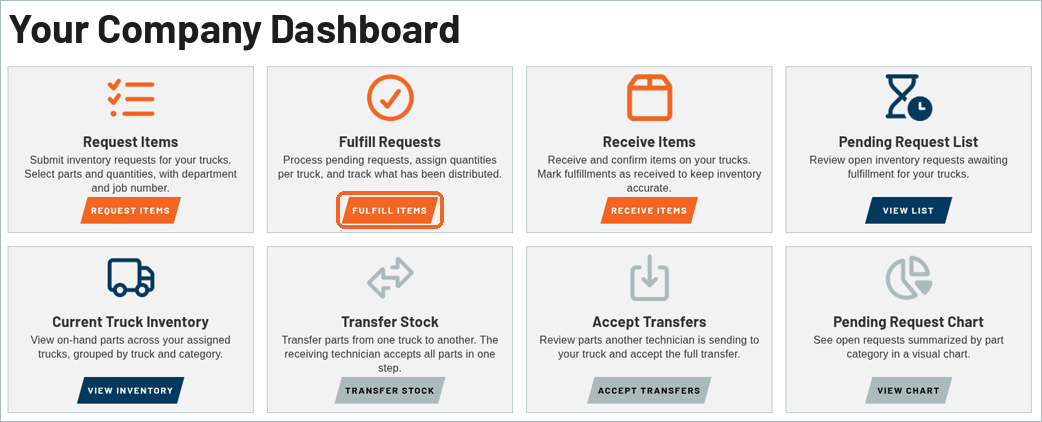
Go back to the Dashboard and click FULFILL ITEMS on the Fulfill Requests tile.
3. Choose where the parts come from
At the top of the Fulfill TruckStock Requests page, Fulfill from (optional) lets you select a stockroom to deplete inventory, or leave it on None (not tracked).

4. Enter the quantities you’re sending
Open requests are shown in a card for each truck, with the Name, Timestamp, Type and Open quantity. For each row, type the quantity in Qty., use the minus and plus buttons, or click the check button to fill in the open quantity. You can’t go above the open quantity, and you can leave rows blank to fulfill them later. You’ll also see FULFILL ALL and FULFILL NONE buttons and a Fulfill All In Truck box on each card.

5. Submit
Click SUBMIT FULFILLMENTS at the bottom right. TruckStock records the fulfillments and takes you back to the Dashboard.

What’s next
Next up: How to Receive Items.
Recent Comments