
This guide shows you how to add departments, which are used to sort requests and reports, and how to add stockrooms for your inventory.
Before you start
- Who can do this: company admins, since both screens are on the Administration page.
- What you need: the names of your departments and stockrooms.
Steps
1. Find Manage Departments and Manage Stockrooms
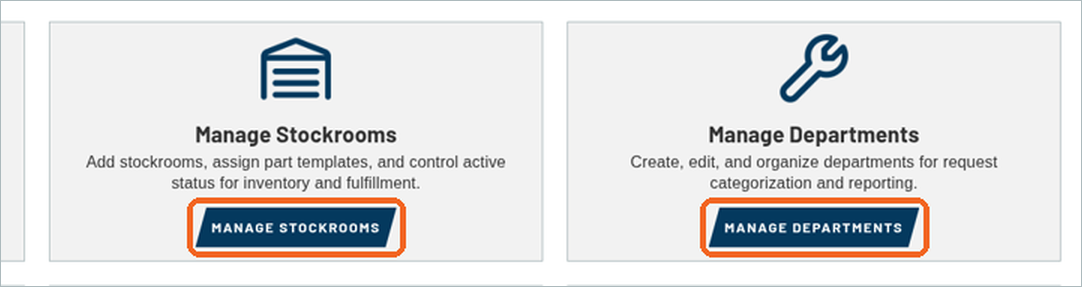
Click Administration in the top menu and scroll to the Fleet & Inventory group. You’ll find MANAGE DEPARTMENTS and MANAGE STOCKROOMS there. Start with departments.
2. Open the department list
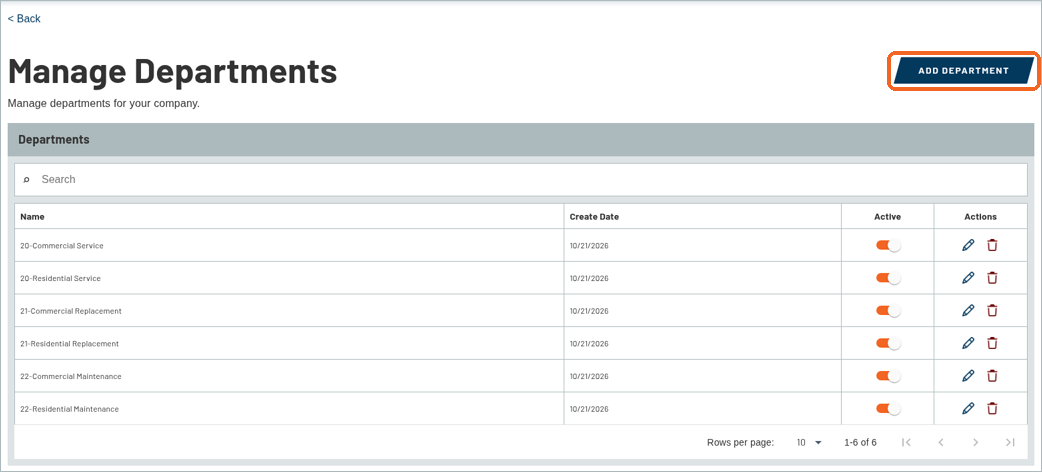
Click MANAGE DEPARTMENTS. You’ll see your departments, with their Create Date, an Active switch, and buttons to edit or delete each one. Your trial company comes with a few sample departments. To add one, click ADD DEPARTMENT.
3. Add a department
In the Add Department window, type a Name, such as Service Calls. Leave Active switched on, then click ADD DEPARTMENT.

4. Check your new department
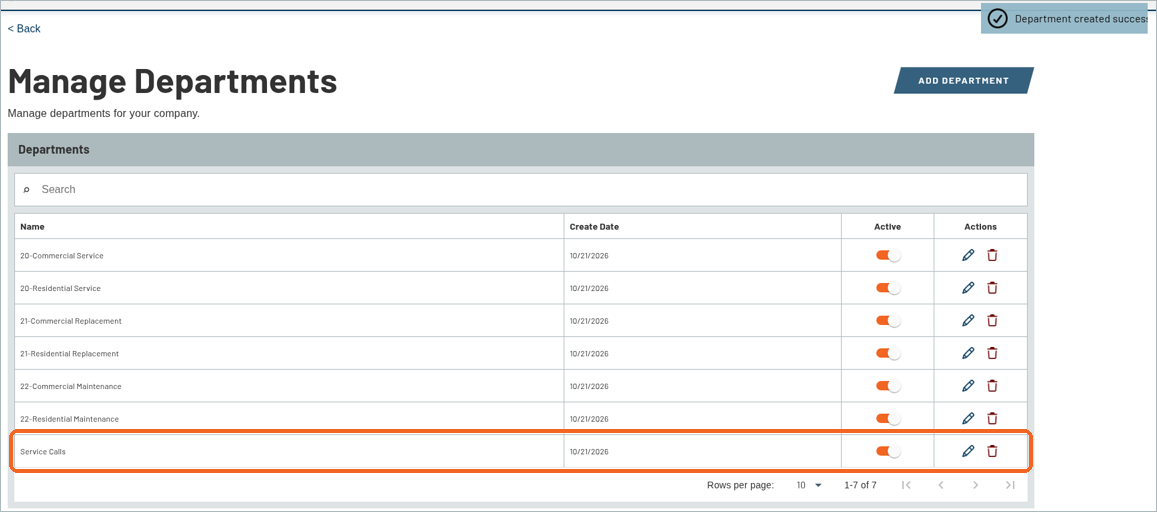
A confirmation message appears at the top right, and your new department shows in the list.
5. Open the stockroom list
Go back to Administration and click MANAGE STOCKROOMS. The list shows each stockroom’s Name, Part Template and Active status. Your trial company already has one stockroom, marked (Default). To add another, click ADD STOCKROOM.

6. Add a stockroom
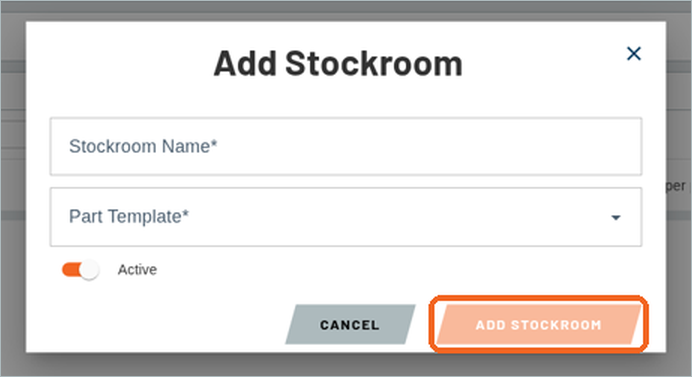
In the Add Stockroom window, type a Stockroom Name and choose a Part Template from the list. Leave Active switched on, then click ADD STOCKROOM. Part templates are covered in a later guide.
Recent Comments