

This guide shows you how to update your company name and logo, and how to choose which fields technicians must fill in when they request parts.
Before you start
- Who can do this: company admins, since Company Settings is on the Administration page.
- What you need: your company logo file, if you want to add one.
Steps
1. Open Company Settings
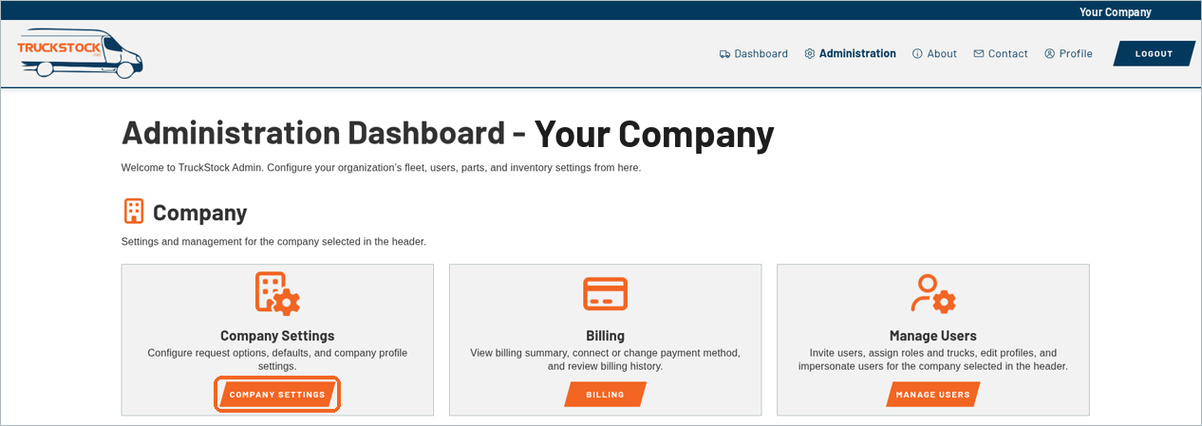
Click Administration in the top menu. In the Company group, click COMPANY SETTINGS.
2. Update your company name and logo
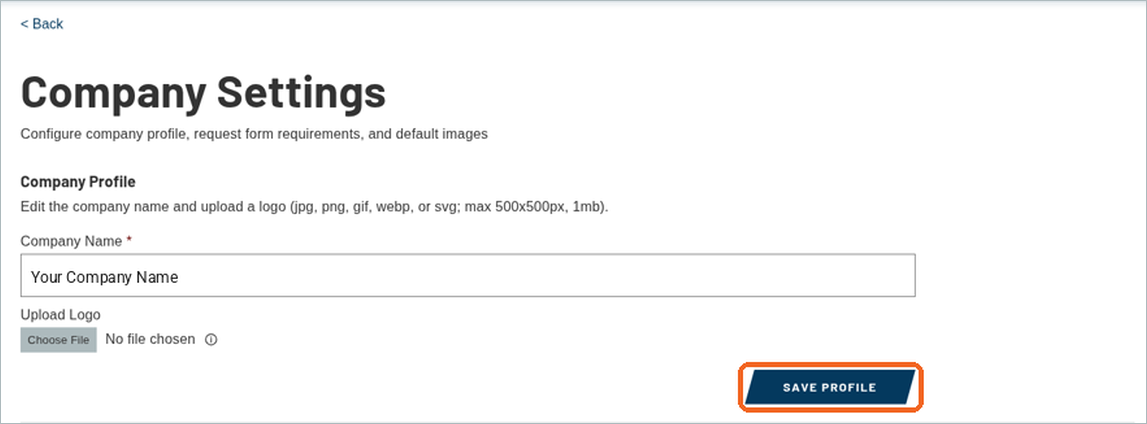
Under Company Profile, check your Company Name and change it if you need to. To add a logo, click Choose File under Upload Logo and pick your image. The screen lists the accepted files: jpg, png, gif, webp or svg, up to 500×500 pixels and 1 MB. Then click SAVE PROFILE.
3. Choose which request fields are required
Under Request Form Options, tick Department Required, Job Number Required, or both, to make technicians fill in those fields when they submit inventory requests. Leave them unticked to keep them optional. Then click SAVE SETTINGS.

What’s next
If you make departments required, set up your departments next.
Next up: How to Set Up Departments and Stockrooms.
Recent Comments