When a truck needs parts, you send a request from the Dashboard. This guide shows you how to choose the request type, pick parts and submit the request.
Before you start
- Who can do this: technicians and anyone else who requests parts for a truck.
- What you need: a truck with a truck type. See How to Add Trucks and Stock Them. If your company requires a department or job number, have it handy. See How to Set Up Your Company Settings.
Steps
1. Open Request Items
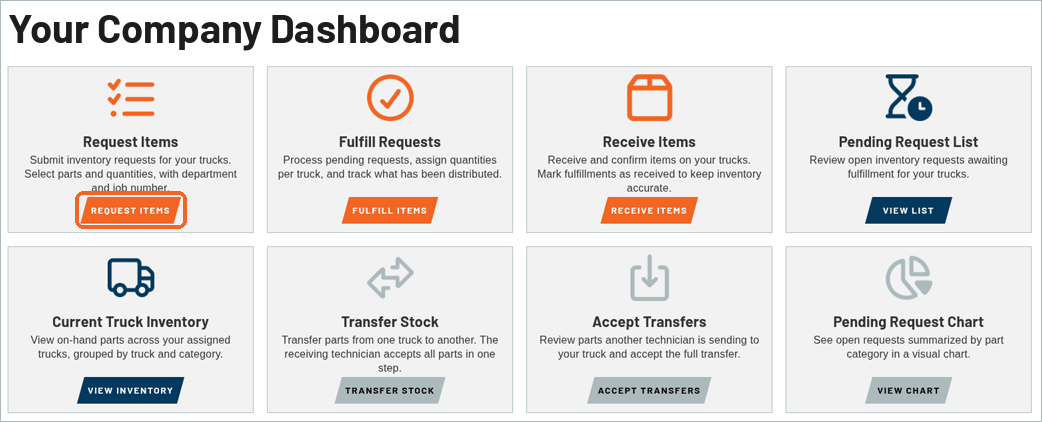
On the Dashboard, click REQUEST ITEMS on the Request Items tile.
2. Choose the request type
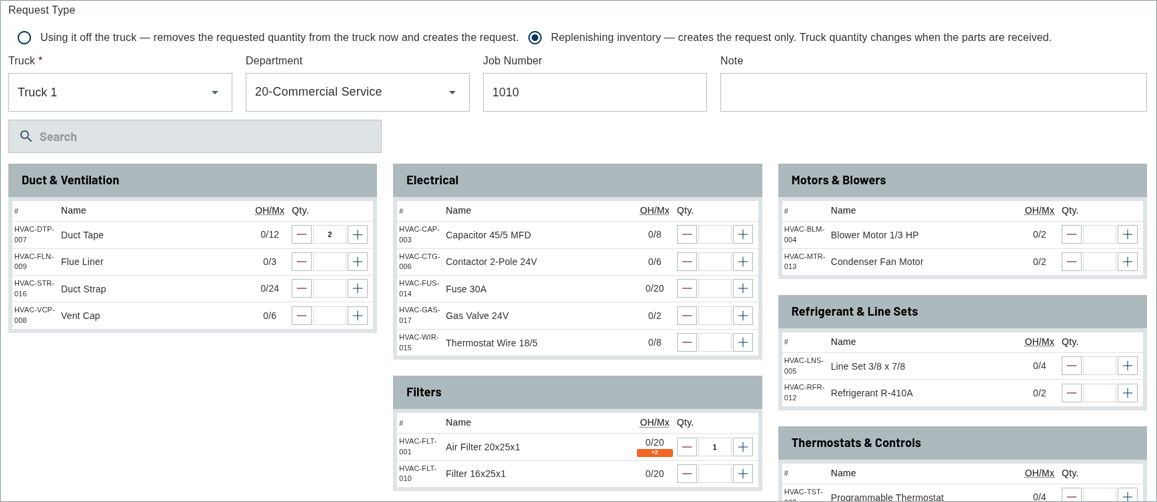
Under Request Type, pick one of two options:
- Using it off the truck: removes the requested quantity from the truck now and creates the request. This option is selected when the page opens.
- Replenishing inventory: creates the request only. Truck quantity changes when the parts are received.
The tabs at the top of the page, Current Truck Inventory List and Pending Requests, let you check a truck’s parts and open requests while you work.

3. Pick the truck and add details
Choose a Truck. This is required. Then pick a Department, and add a Job Number and a Note if you need them.
4. Enter quantities
The truck’s parts appear grouped by category. Each part shows its number, Name and OH/Mx (on hand and max). Use the minus and plus buttons, or type a number in Qty., for each part you need. Use Search to find a part quickly.
When you’re done, click REVIEW REQUEST at the bottom right.

5. Review and submit
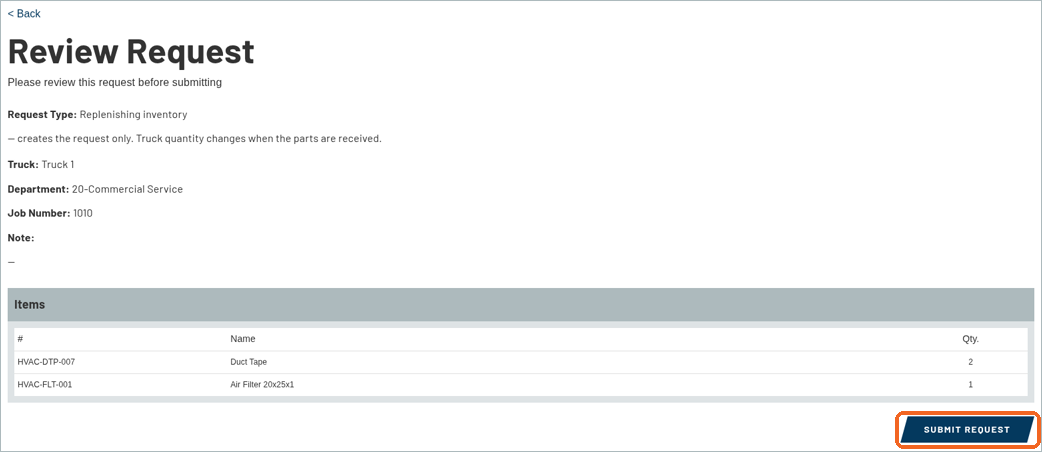
The Review Request page shows the request type, truck, department, job number, note and the items you picked. If it all looks right, click SUBMIT REQUEST. To make changes, click < Back.
6. Check for the confirmation
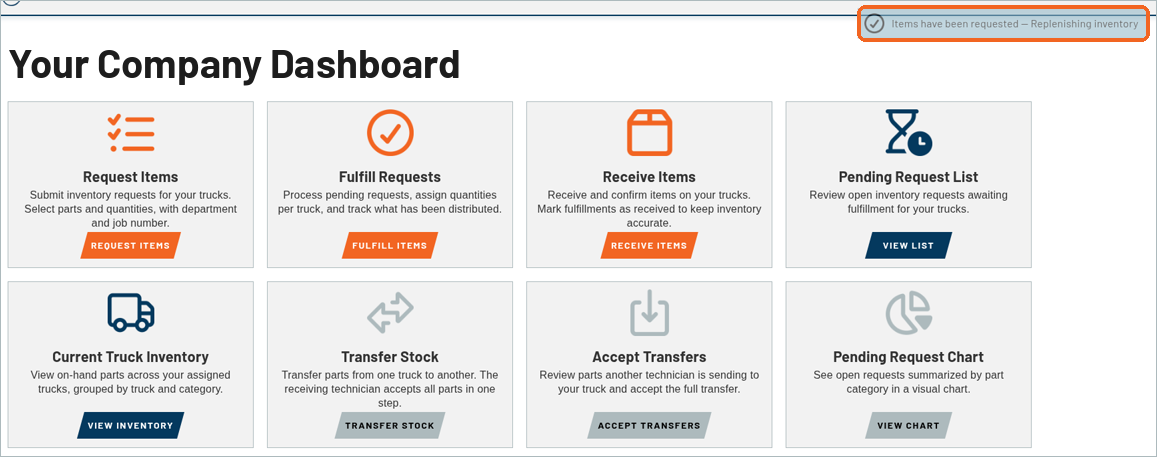
You’re taken back to the Dashboard, and a message at the top right says Items have been requested, followed by the request type.
What’s next
Next up: How to Fulfill Requests.
Recent Comments