
Once your trucks are set up, you can check what’s on each one and update the quantities. This guide shows you where to see truck inventory and how to edit it.
Before you start
- Who can do this: anyone can view the trucks on the Dashboard. Editing is done from the Administration page, so you’ll need to be a company admin.
- What you need: at least one truck with a truck type. See How to Add Trucks and Stock Them.
Steps
1. See what’s on each truck
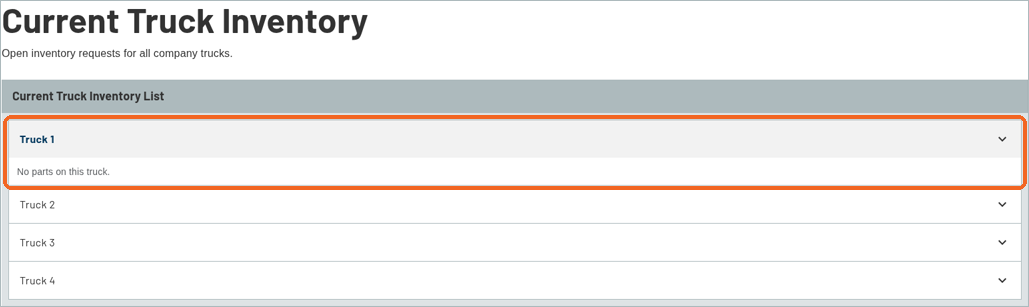
Click Dashboard, then VIEW INVENTORY on the Current Truck Inventory tile. Click a truck’s name to open it and see its parts. A truck with nothing on it yet shows No parts on this truck.
2. Open Edit Inventory
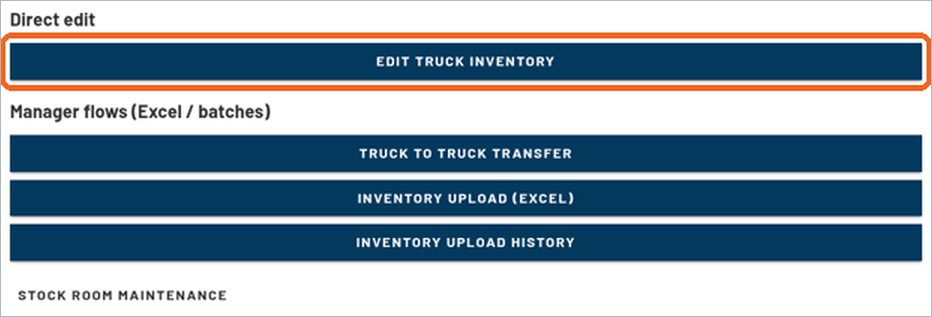
Click Administration, then EDIT INVENTORY in the Fleet & Inventory group. Under Direct edit, click EDIT TRUCK INVENTORY. The other buttons on this page are for transfers and spreadsheet uploads, which are covered separately.
3. Choose a truck
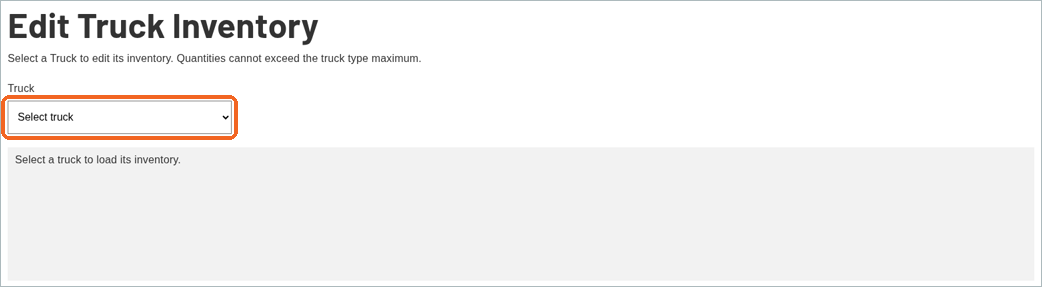
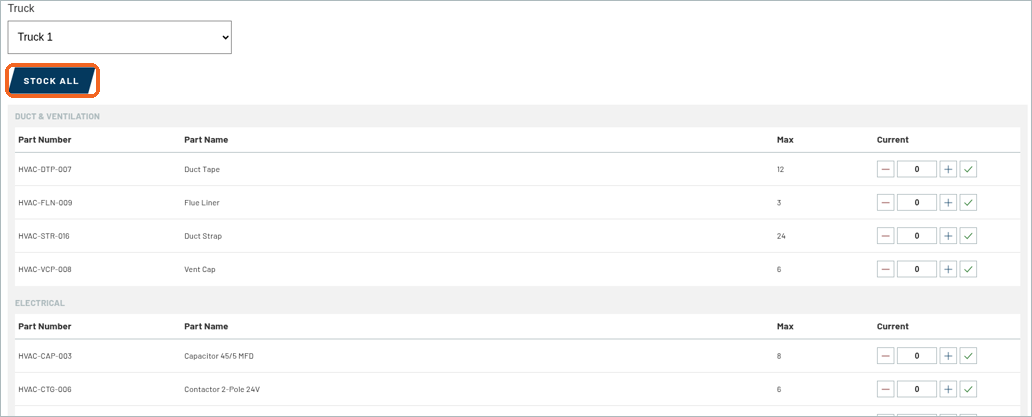
Pick a truck from the Truck list. Its inventory loads below.
4. Change the quantities
Parts are grouped by category. Each row shows the Part Number, Part Name, Max and Current quantity. Use the minus and plus buttons, or type a number, to set the Current quantity. Quantities can’t go above the truck type’s maximum. You’ll also see a STOCK ALL button at the top of the list.
5. Save your changes
When you’re done, click UPDATE INVENTORY at the bottom right. Click CANCEL to leave without saving.

What’s next
Next up: How to Manage Users and Send Invites.
Recent Comments